
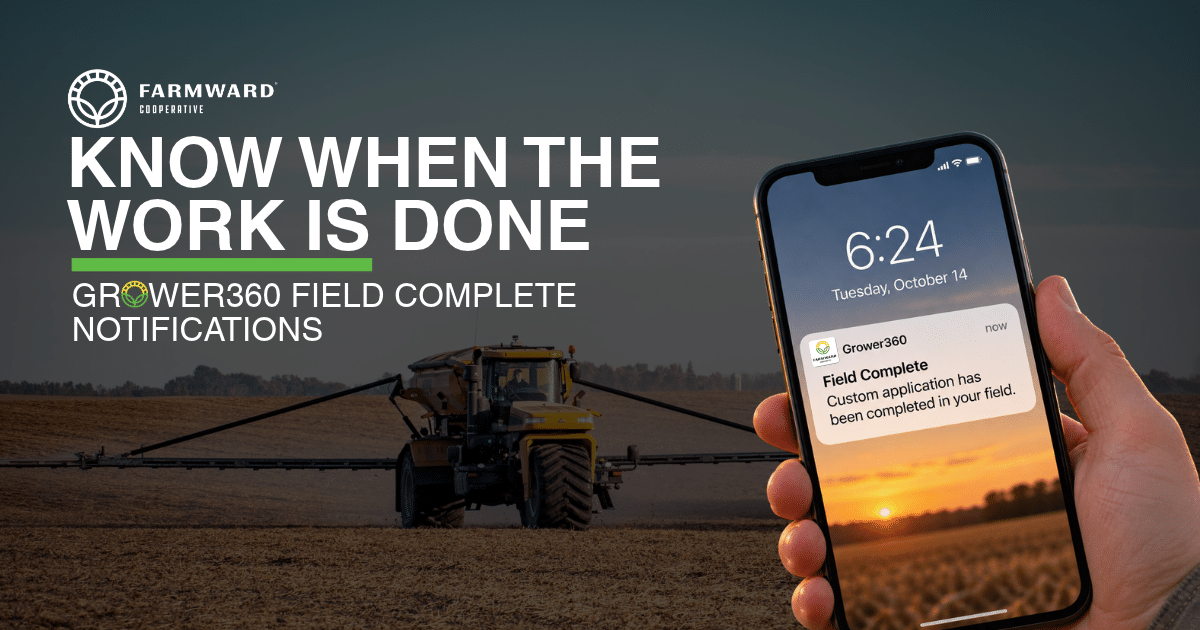
step-by-step instructions
Step 1: Open Grower360
-
-
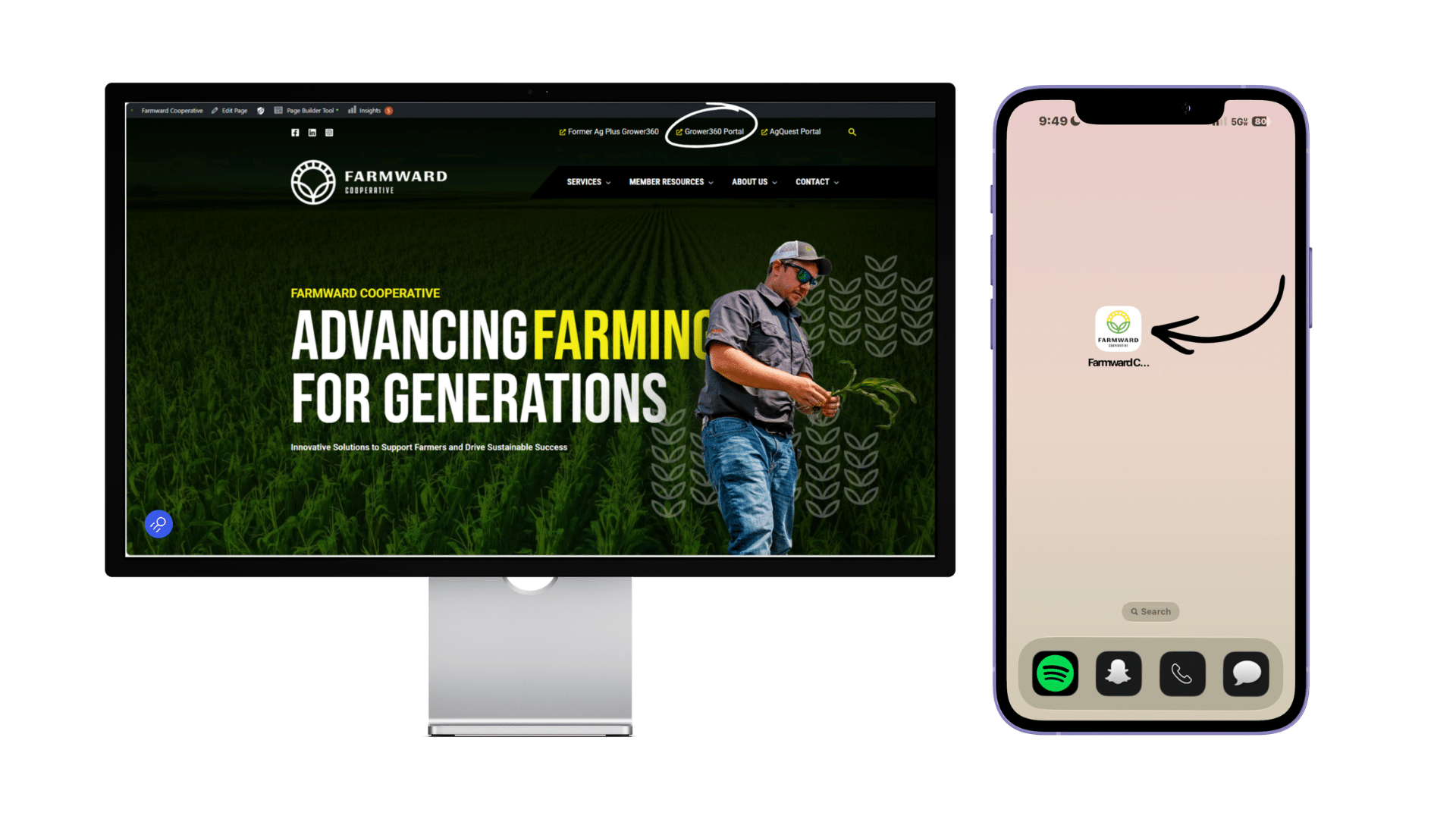
On your phone: Open the Farmward Grower360 app.
On your computer: Click here to visit our Grower360 Portal.
-

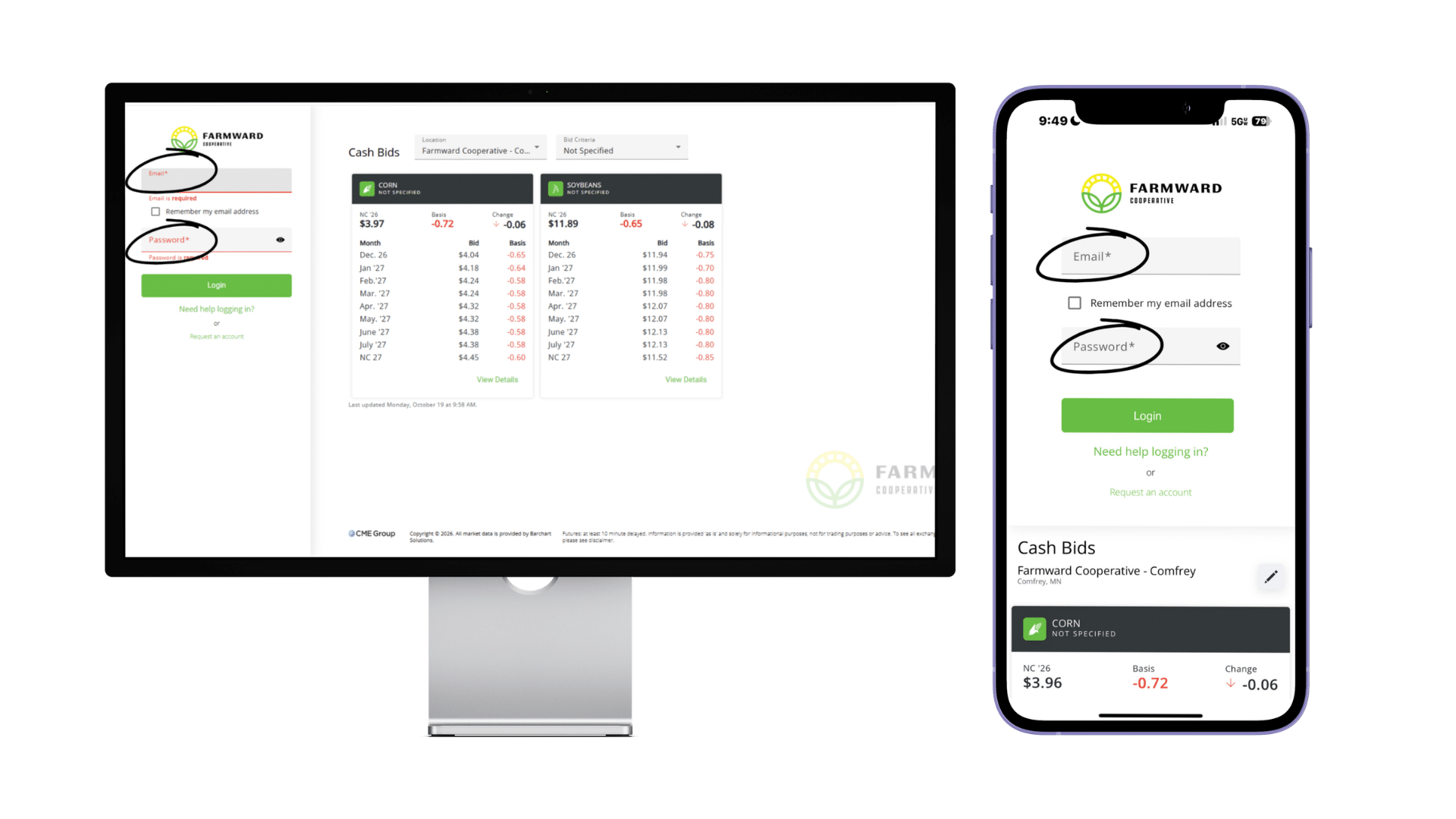
Step 2: Sign In or Set Up Your Farmward Grower360 Account
Already have an account?
Enter your email address and password to sign in.
Need to create an account?
- Visit farmward.grower360.net.
- Click Request an Account.
- Complete the required fields.
- Once your request is processed, you'll receive an email from no-reply@grower360.net inviting you to confirm your account and create a password.
Your username will be your email address.
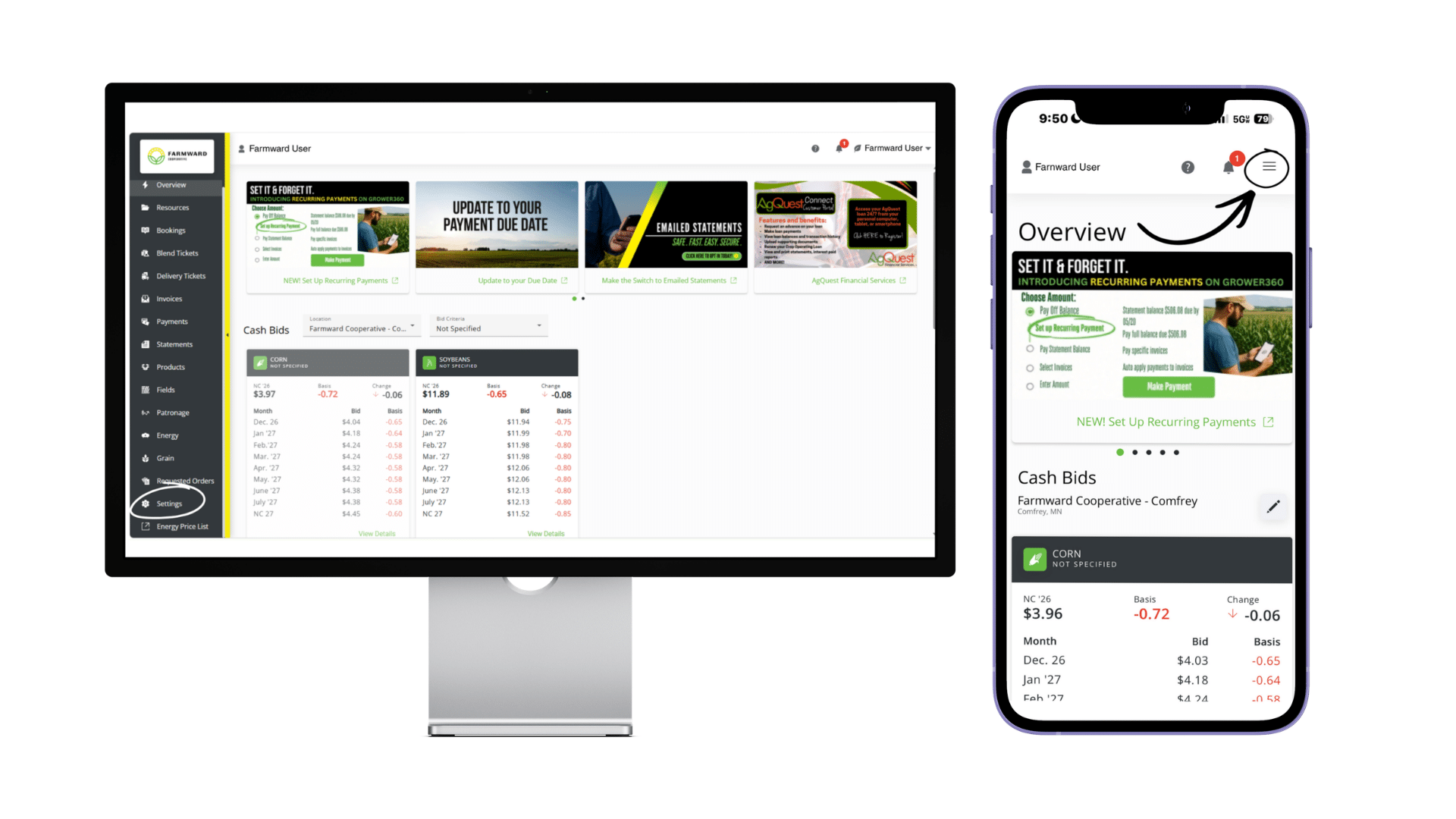
Step 3: Go to Settings
- On your phone: Tap the three-line menu in the upper-right corner and select Settings.
- On your computer: Click Settings in the left-hand menu.
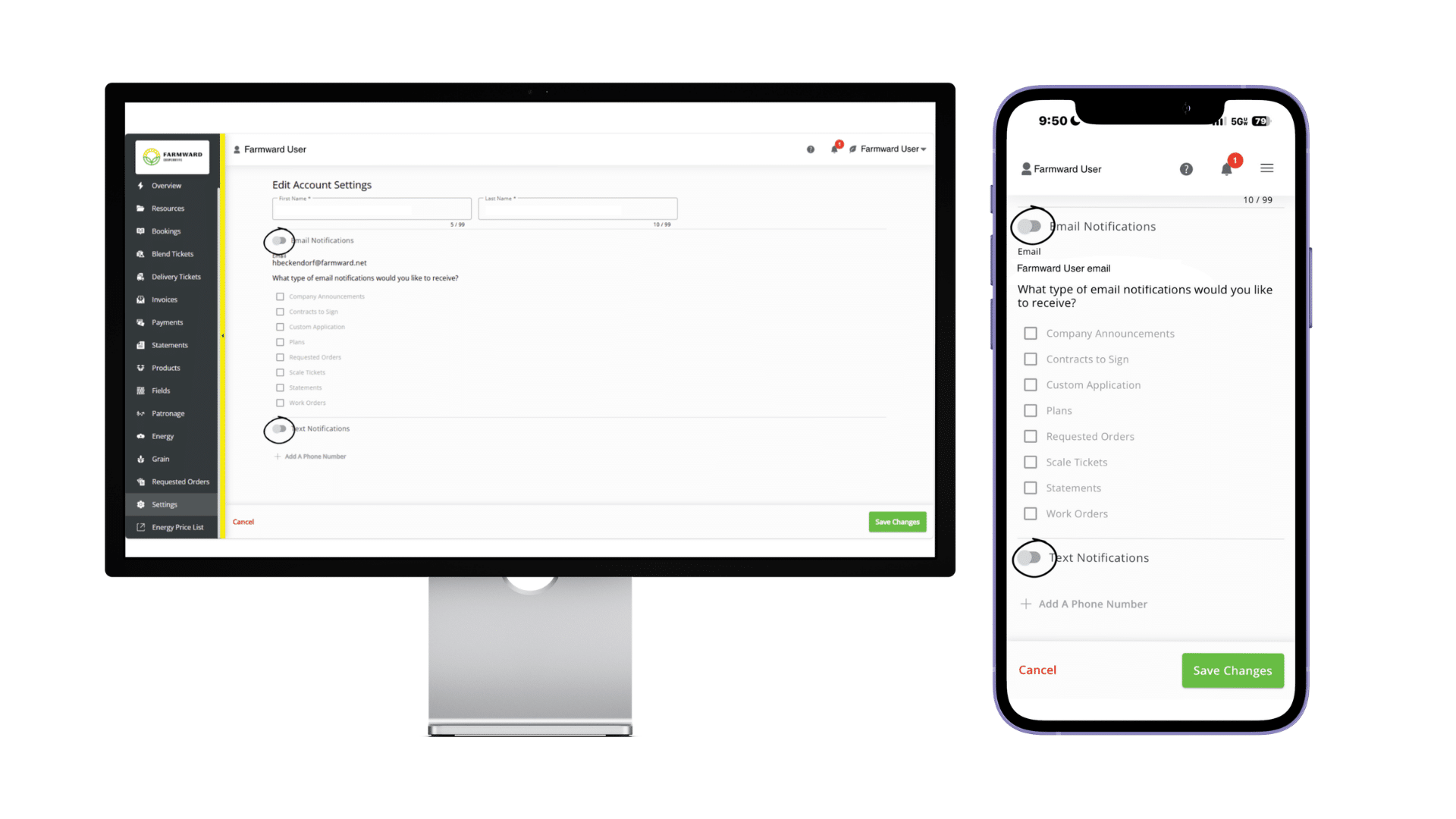
Step 4: Turn On Notifications
Find Email Notifications and Text Notifications in your settings. Turn on the toggle for one or both, depending on how you'd like to receive updates.
Step 5: Set Up Email Notifications
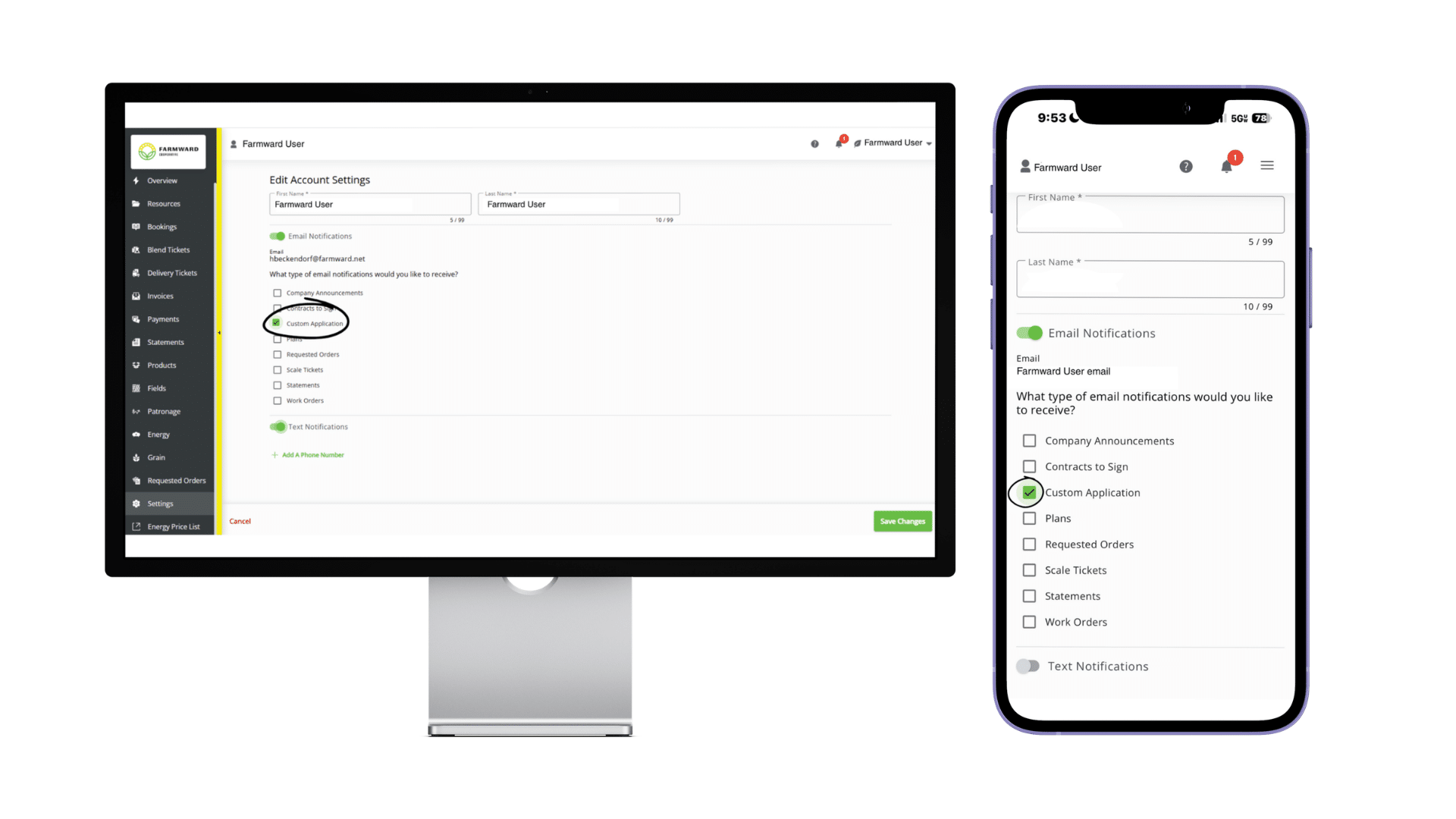
Under "What type of email notifications would you like to receive?" check the box next to Custom Application.
Step 6: Set Up Text Notifications
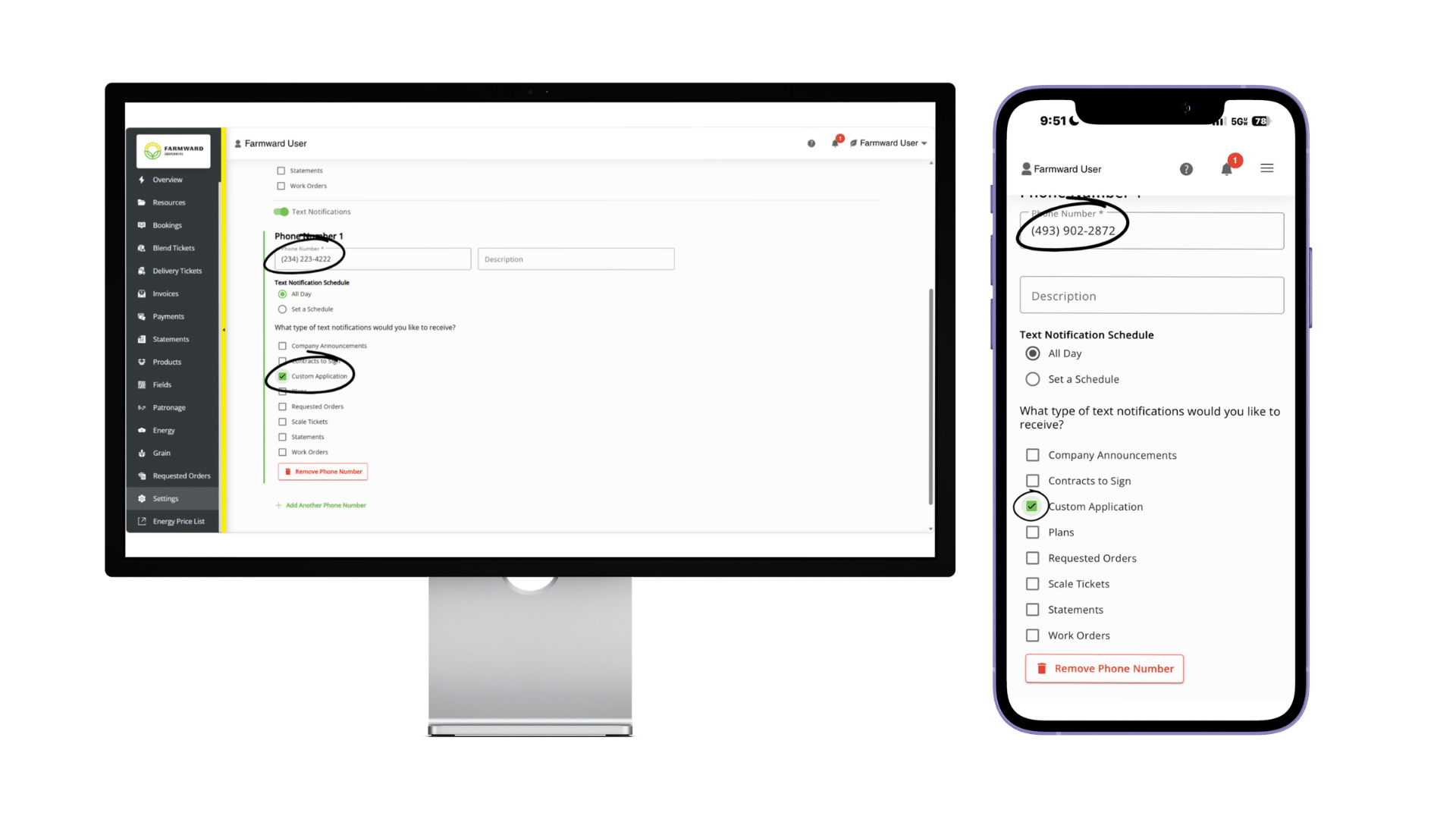
- Tap or click Add A Phone Number.
- Enter your phone number.
- Under "What type of text notifications would you like to receive?" check the box next to Custom Application.
Step 7: Save Your Changes
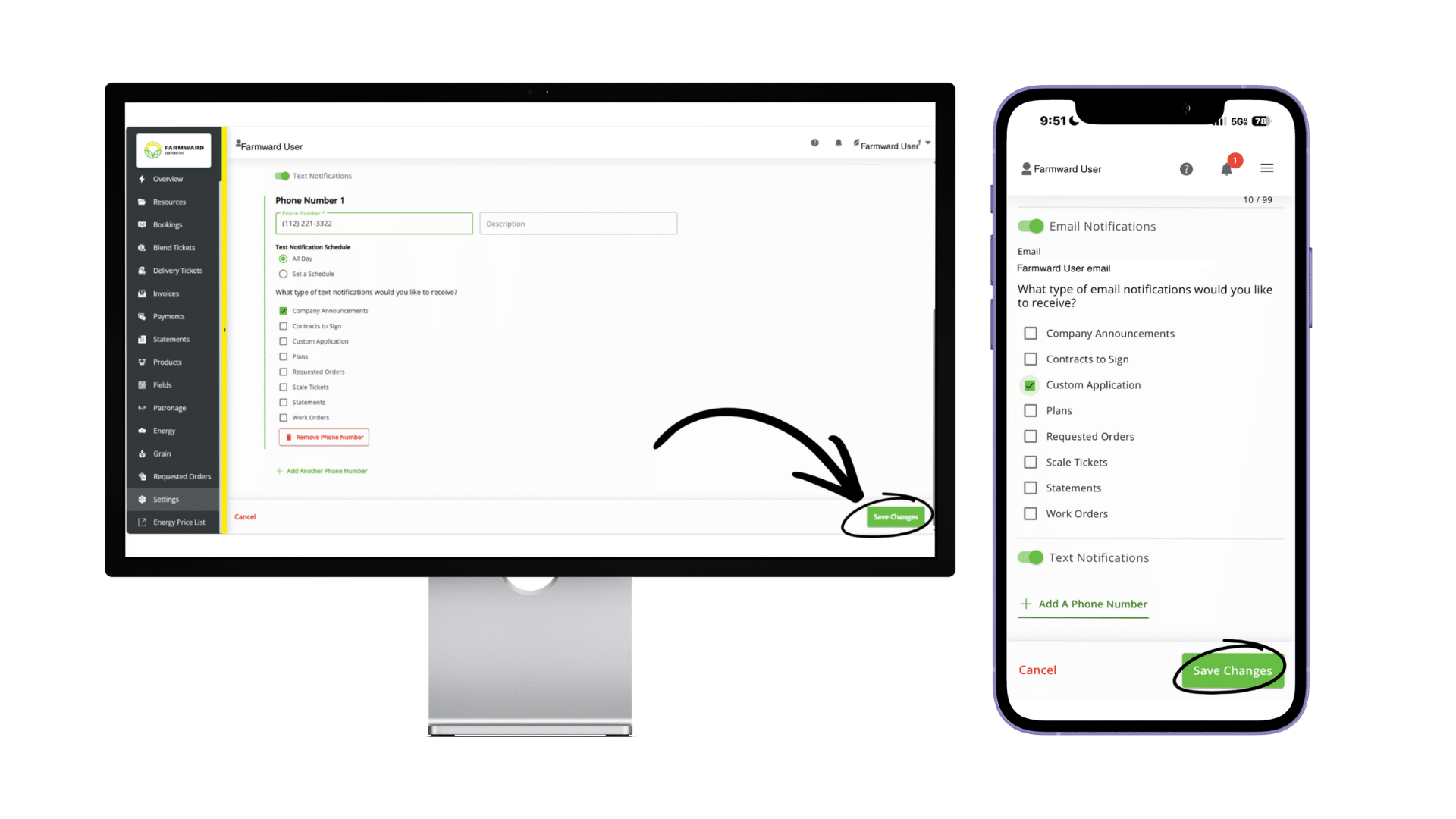
- On your phone: Tap Save Changes.
- On your computer: Click Save Changes in the bottom-right corner.
You're All Set!
Once your settings are saved, you'll be set up to receive Field Complete notifications when Farmward completes custom application work in your fields.
Stay connected and know when the work is done, without making an extra phone call!
Ready to get started? Log in to Grower360 today and turn on your notifications.
If you have any feedback or questions regarding Grower360, please let us know by contacting Kirsten at 507-249-3196 or via email: AR@Farmward.net!